

Colours
Use your own colours, turn on dark mode, and see how the colours that XUND set up for your app work with them.
The app shows every colour from one of 56 colour keys. You can set each key separately for the light and the dark colour scheme. With the JS API, you set the colour scheme and your own colours. With the script embed, you set only the colour scheme. The Colour keys reference lists every key with its defaults and the elements that it paints.
The examples on this page use await; run them inside an async function or a <script type="module">.
What you can customise
| Option | JS API | Script embed |
|---|---|---|
Colour scheme: light, dark or auto | customization.colorScheme | color-scheme attribute |
| Change the colour scheme while the app runs | xundApp.setColorScheme() | — |
| Your own light colours | customization.colors.light | — |
| Your own dark colours | customization.colors.dark | — |
Quick start
Set your brand colour and turn on the automatic colour scheme:
const xundApp = await XUND.scic.init({
  …,
  customization: {
    colorScheme: 'auto',
    colors: {
      light: { primary: '#00857c', heading: '#00524c' },
      dark: { primary: '#4fd1c5', onPrimary: '#06201d' },
    },
  },
})

xundApp.setColorScheme('dark')colors.lightandcolors.darkare both optional. Each one is an object of colour keys to CSS colours.- A key that you do not set keeps its default, or it follows the key that it depends on — see Keys follow other keys.
colorSchemeislightwhen you do not set it. Thus dark mode is off until you turn it on.
With the script embed, set only the colour scheme:
<script … color-scheme="auto"></script>The script embed does not support colors.
Start with these keys
Most other keys follow a small set of keys. Set these first, then check the result:
| Key | What it is |
|---|---|
primary | Your brand colour. Buttons, titles, sliders, the progress line and icons follow it. |
onPrimary | Text and icons on primary. |
background | The page behind the app. |
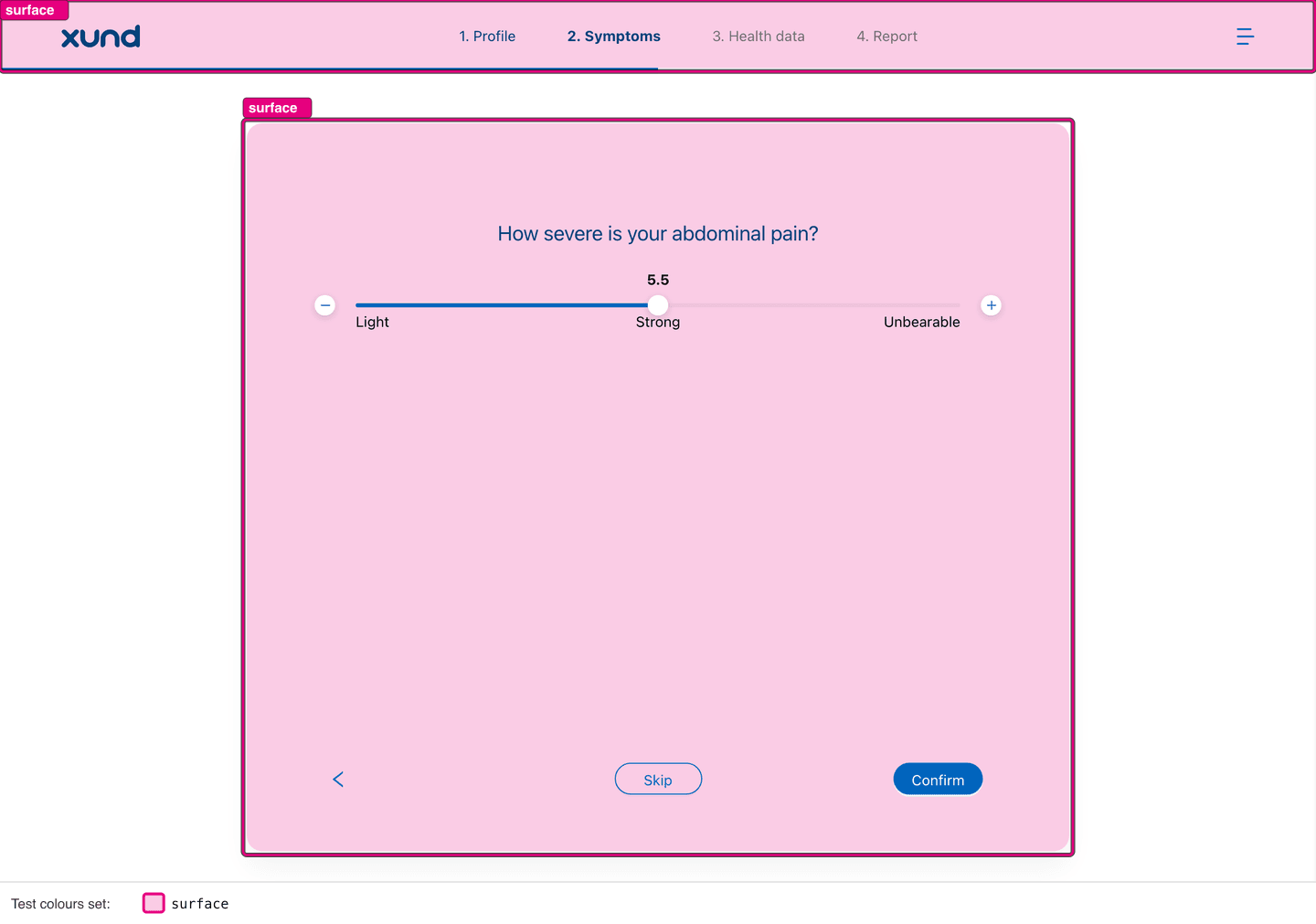
surface | The card with the questions and the report. The header and the button backgrounds follow it. |
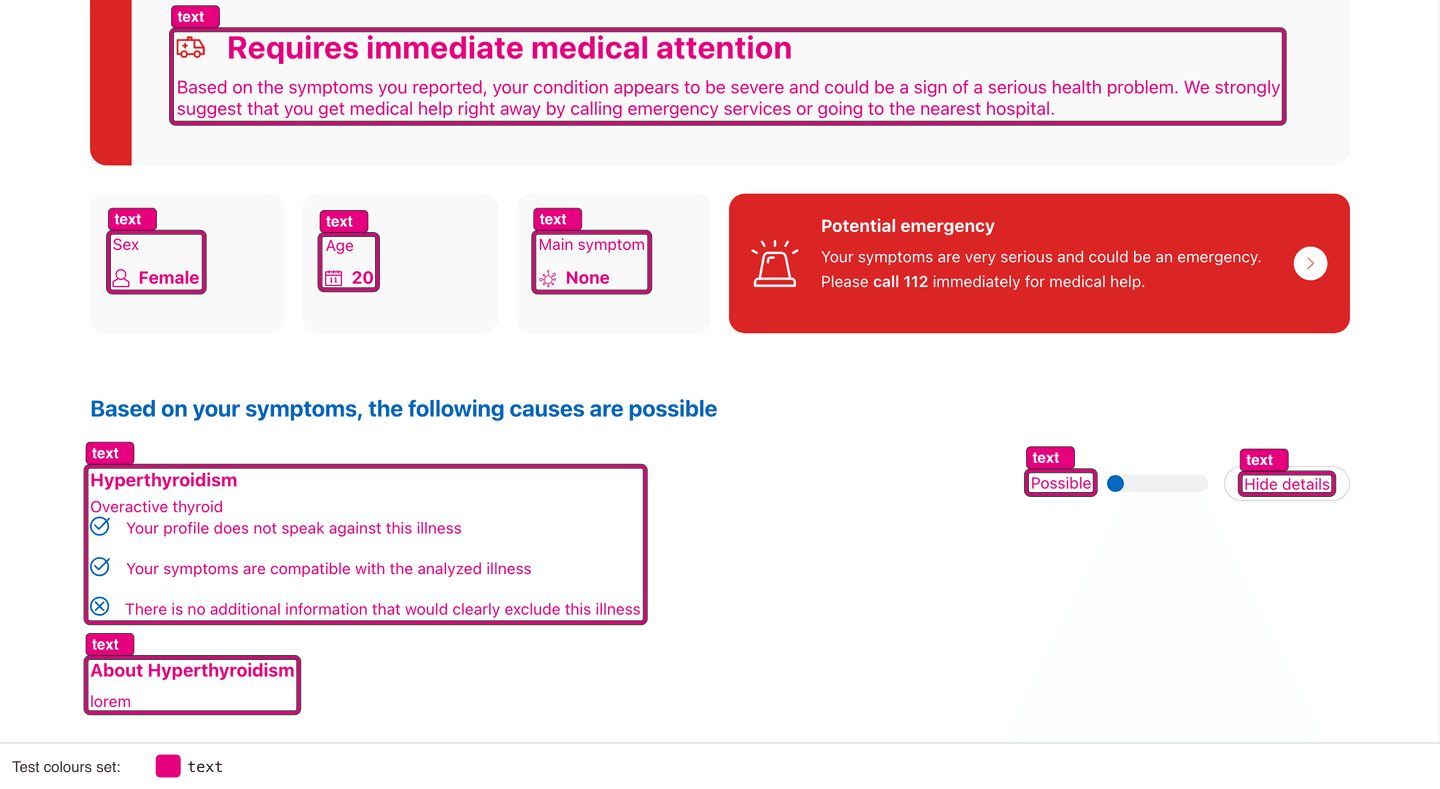
text | Body text. The labels of outlined buttons follow it. |
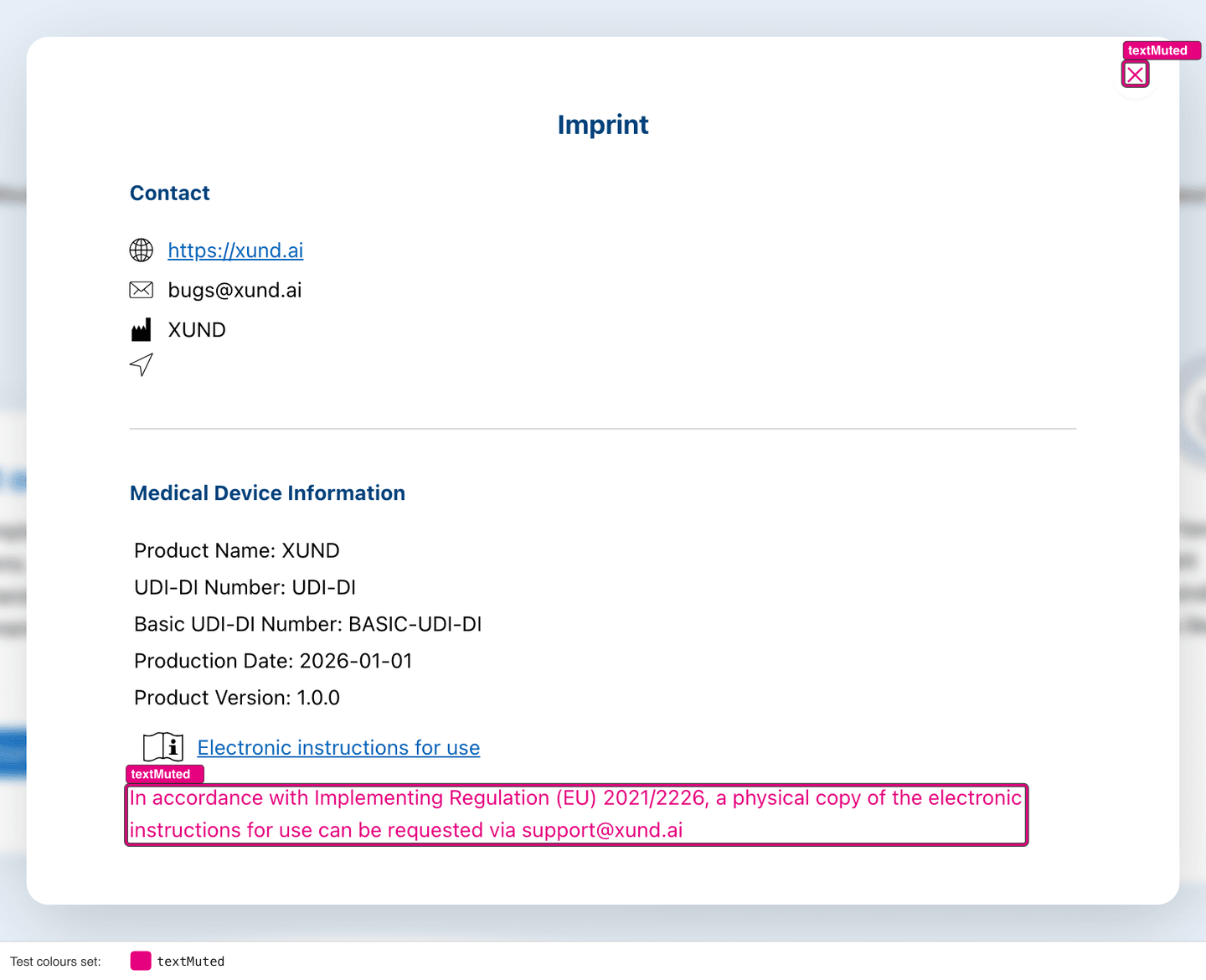
textMuted | De-emphasised text, placeholders and the labels of the next steps. |
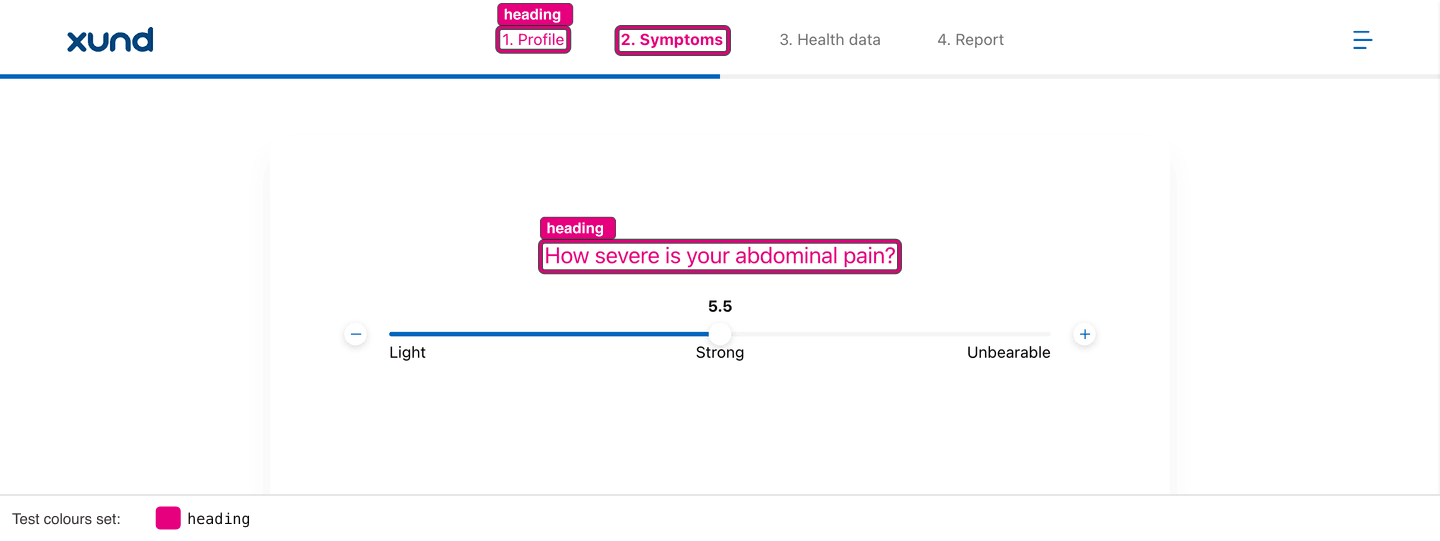
heading | Question titles, dialog titles and the labels of the reached steps. |
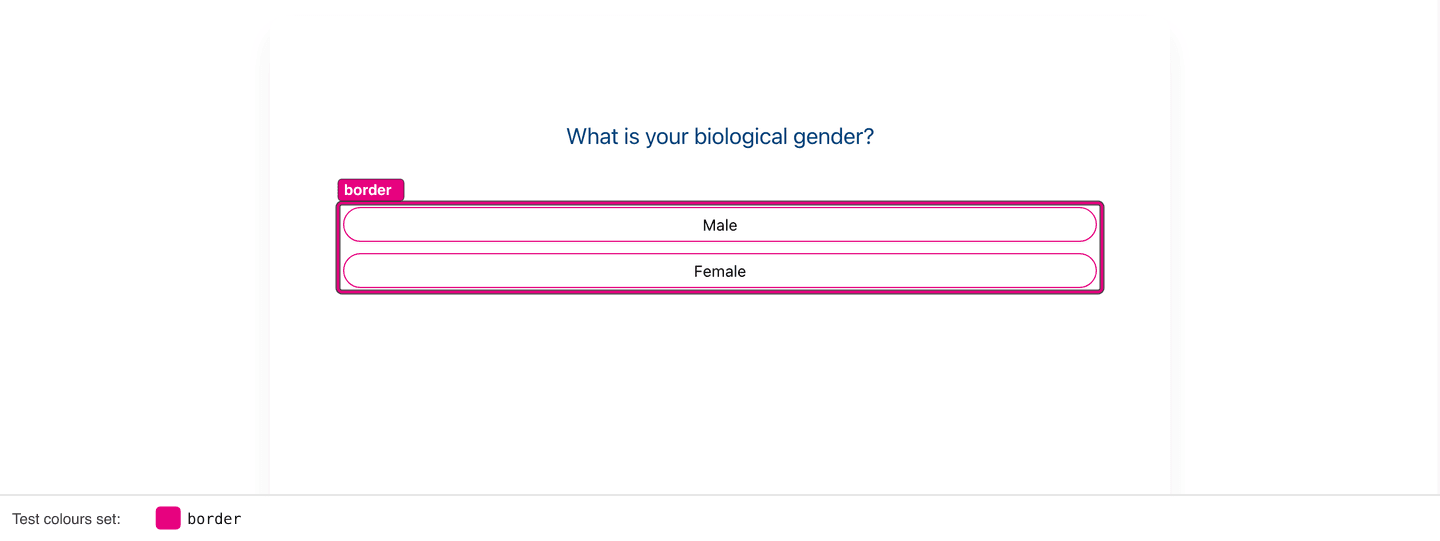
border | Borders and dividers. In light mode, the borders of input fields and outlined buttons follow it. |
danger, warning, success | The emergency, caution and positive colours. |
The example below sets only primary, onPrimary, background, surface, text, textMuted, heading and border. The example has no set-up colours. The keys progressFill, buttonConfirmBackground, buttonSecondaryBorder and icon are not set. They follow primary.
| Light | Dark |
|---|---|
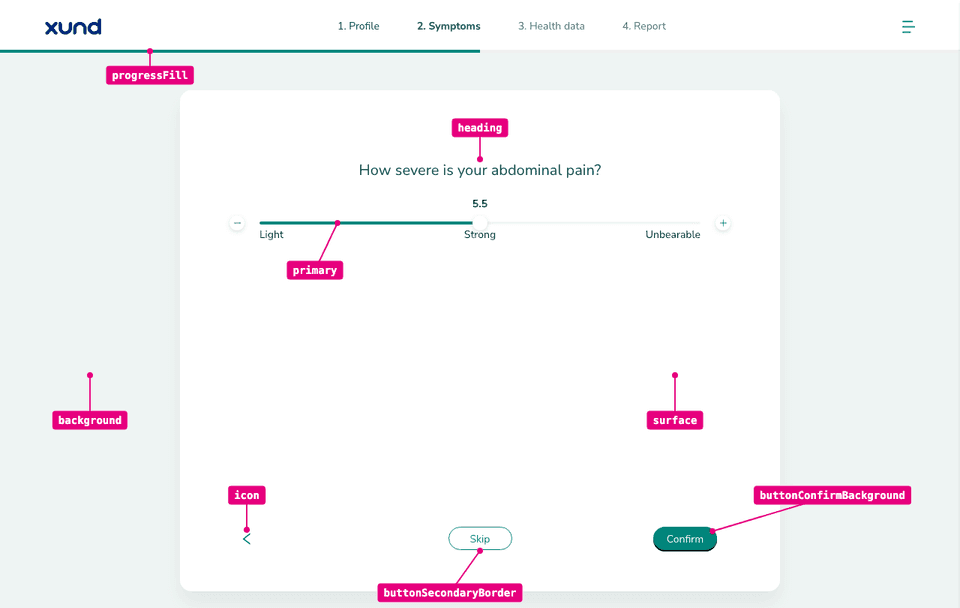 | 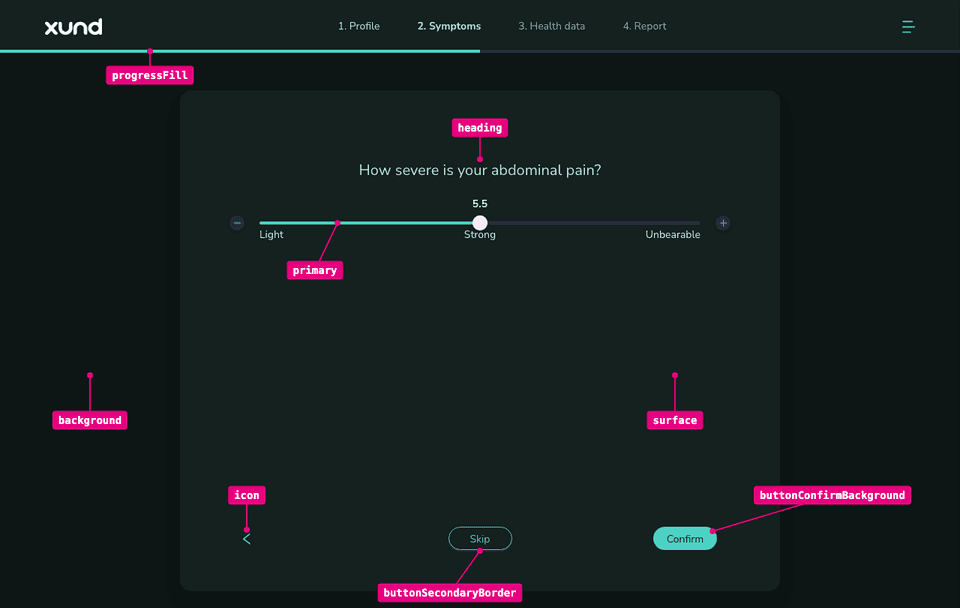 |
What each core colour changes
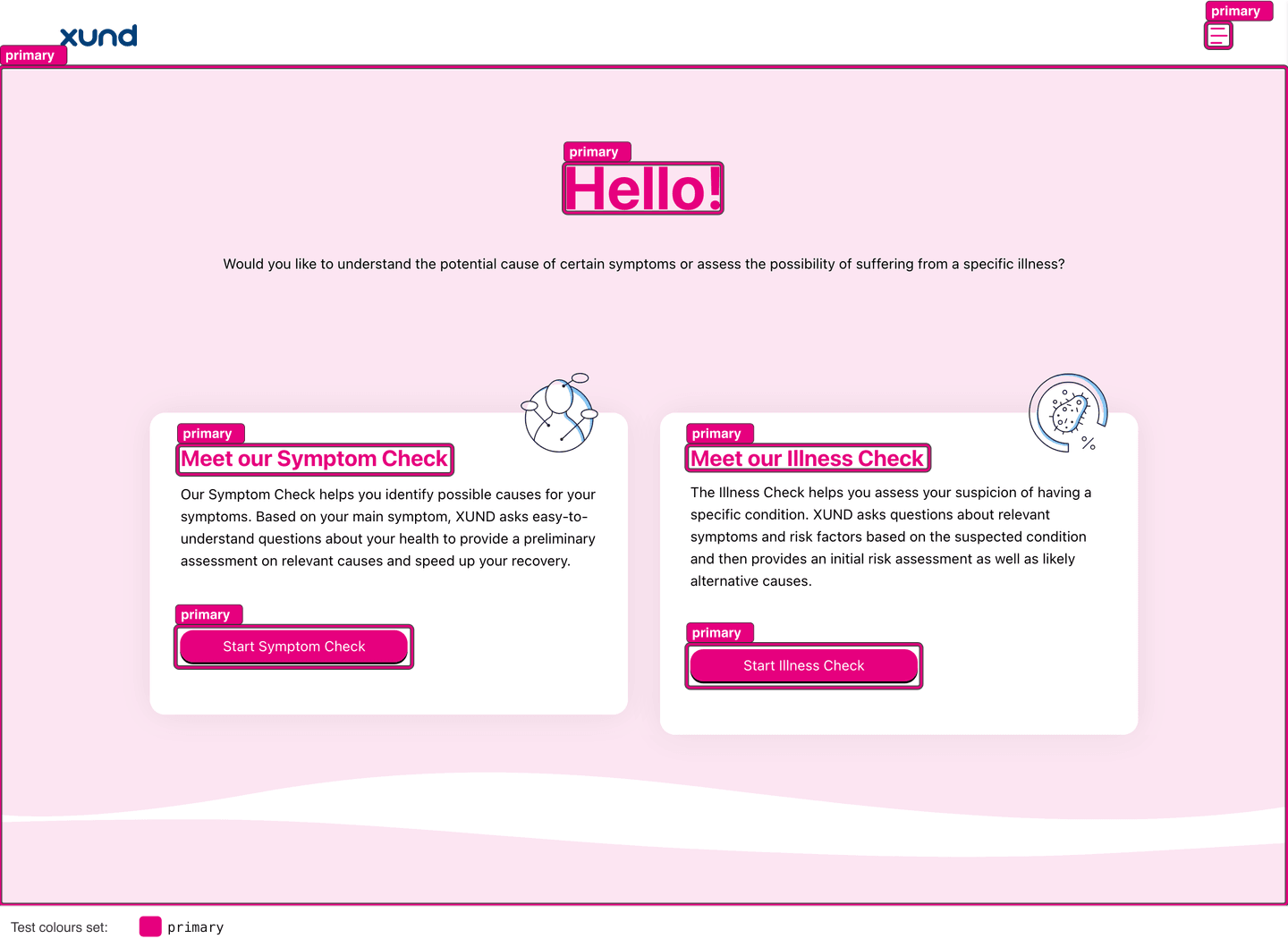
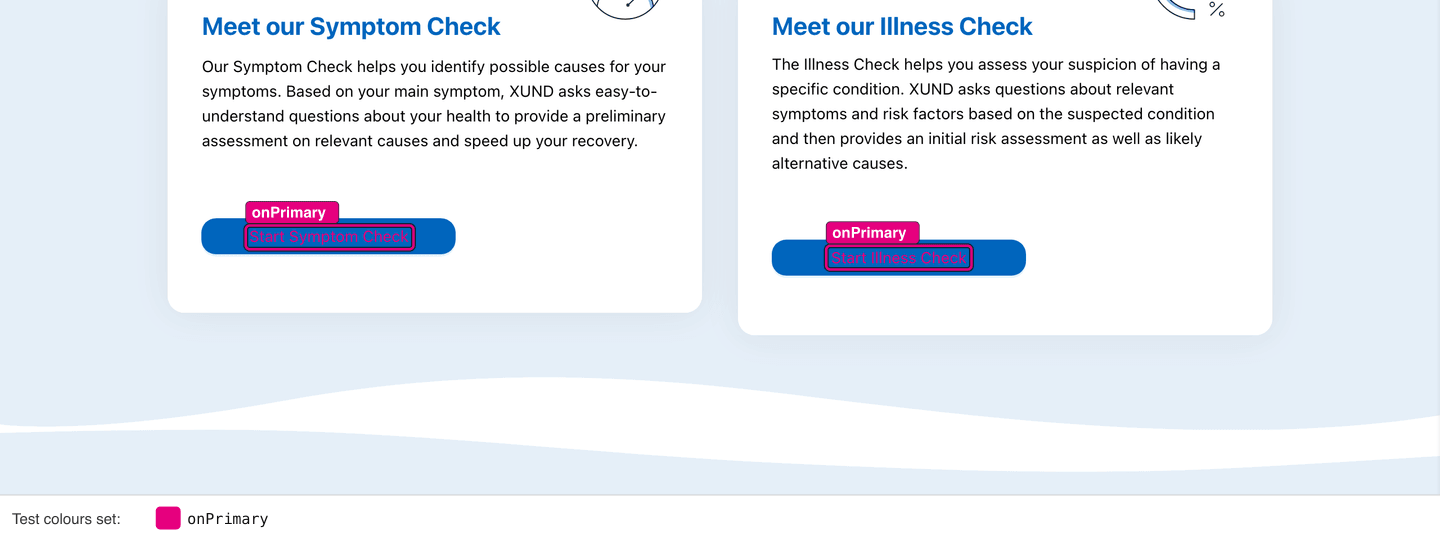
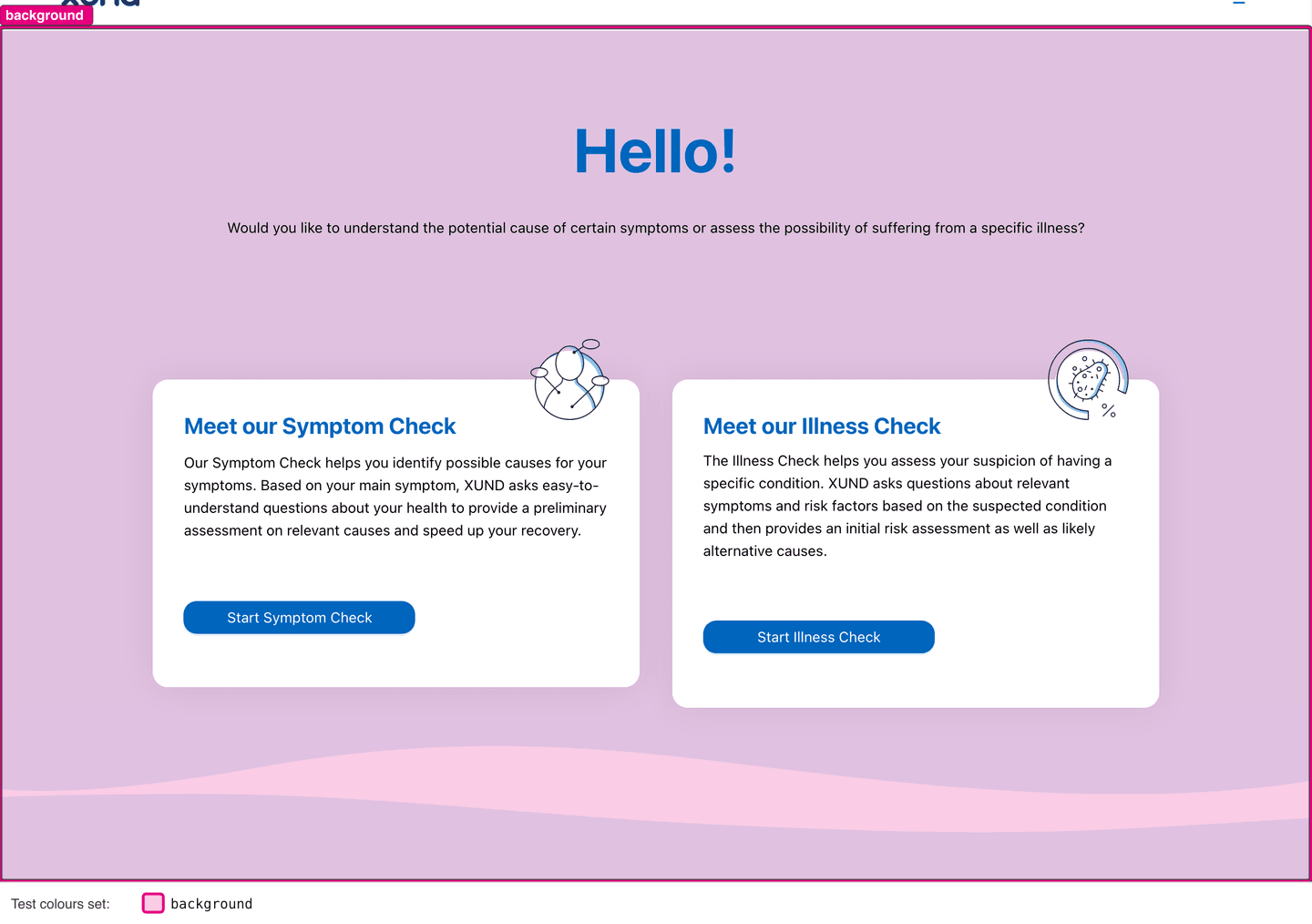
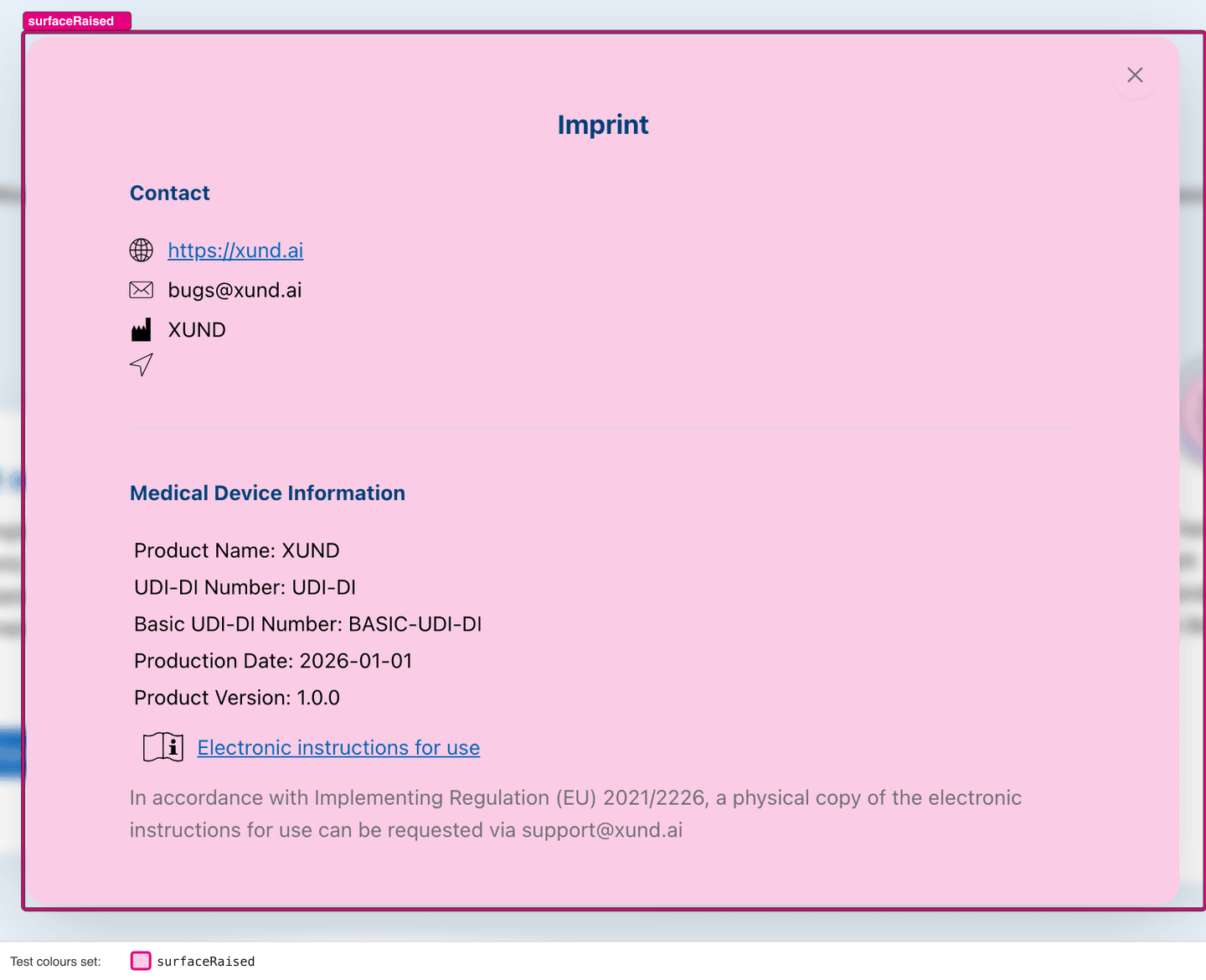
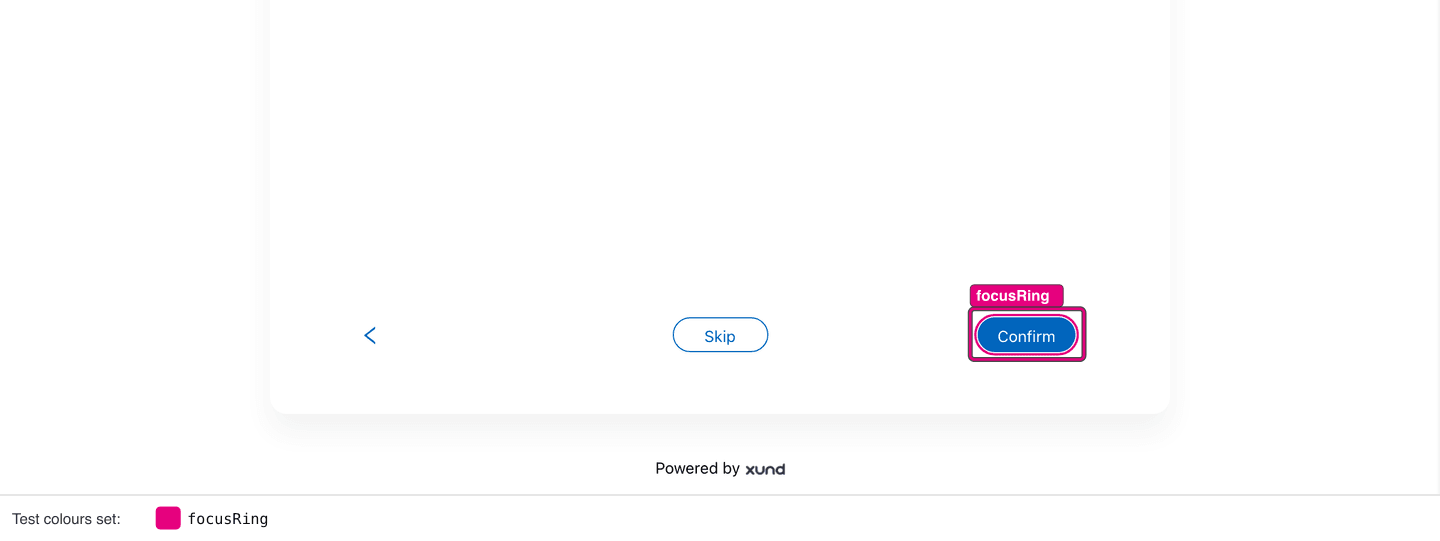
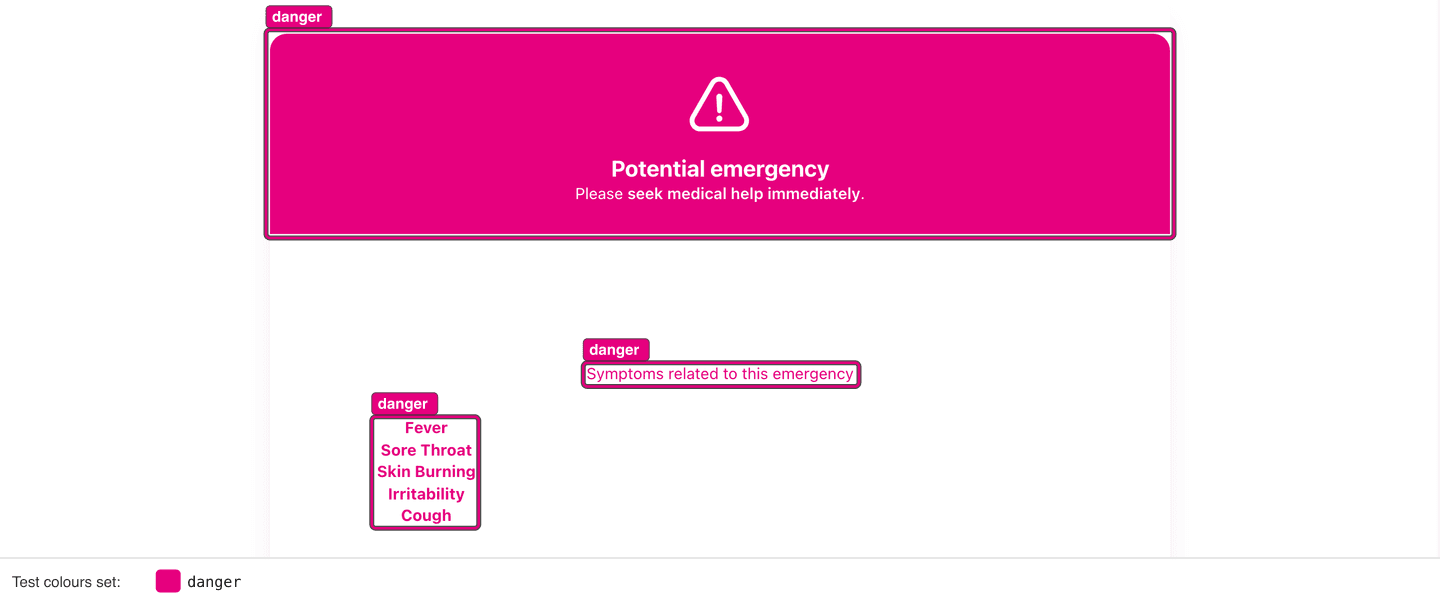
Each picture shows one screen of the app. In the picture, one key has a test colour. A box marks each area that changed. The label on the box gives the key name.
- Select a box or a key name below a picture to open the key in the Colour keys reference.
- The test colours are not recommended colours. They only show which areas change.
- When you set a key, the keys that follow it change too. Thus a picture can show more areas than the key description lists. See Keys follow other keys.
primary
onPrimary
background
surface
surfaceRaised
text
textMuted
heading
border
focusRing
danger
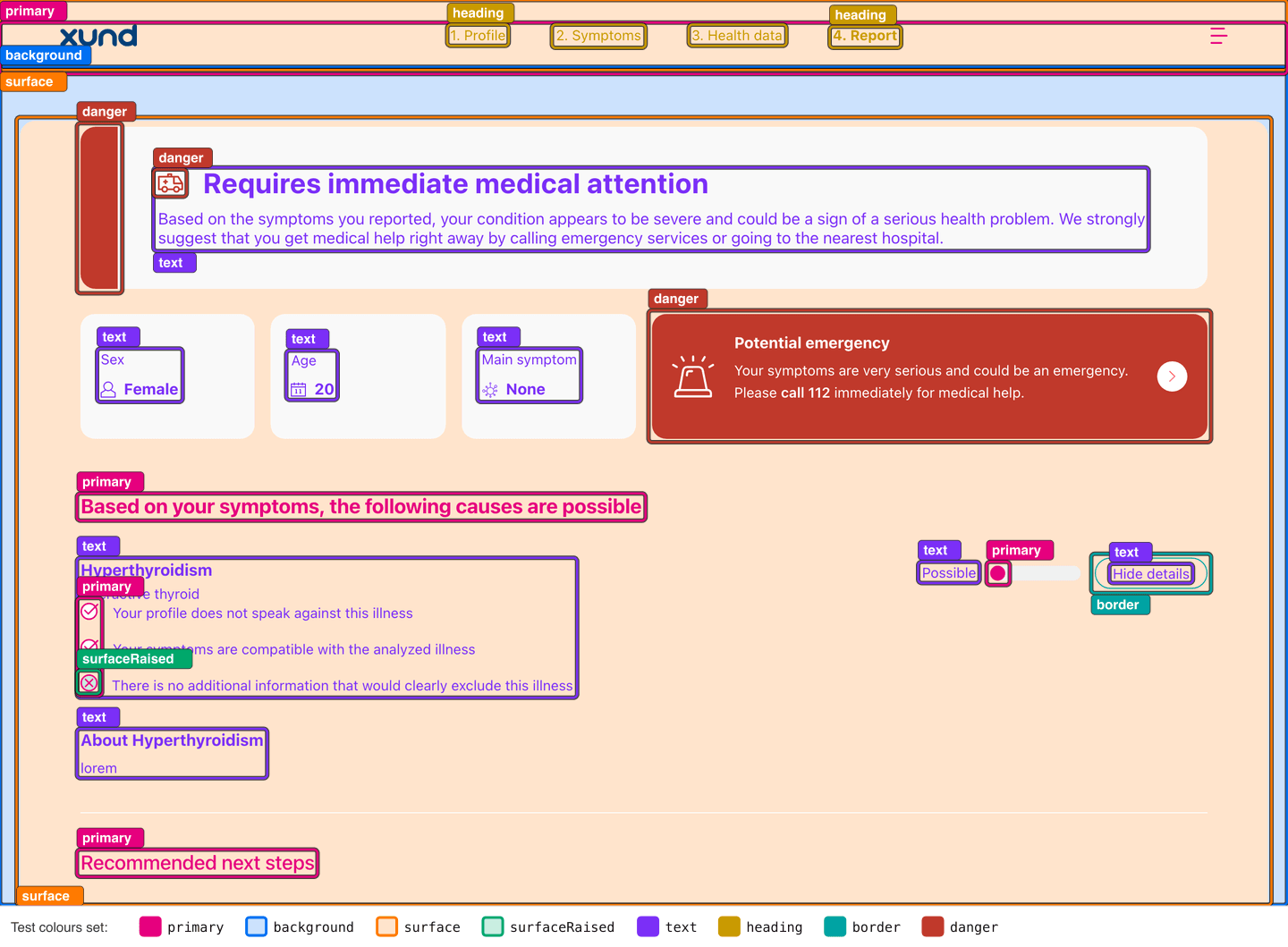
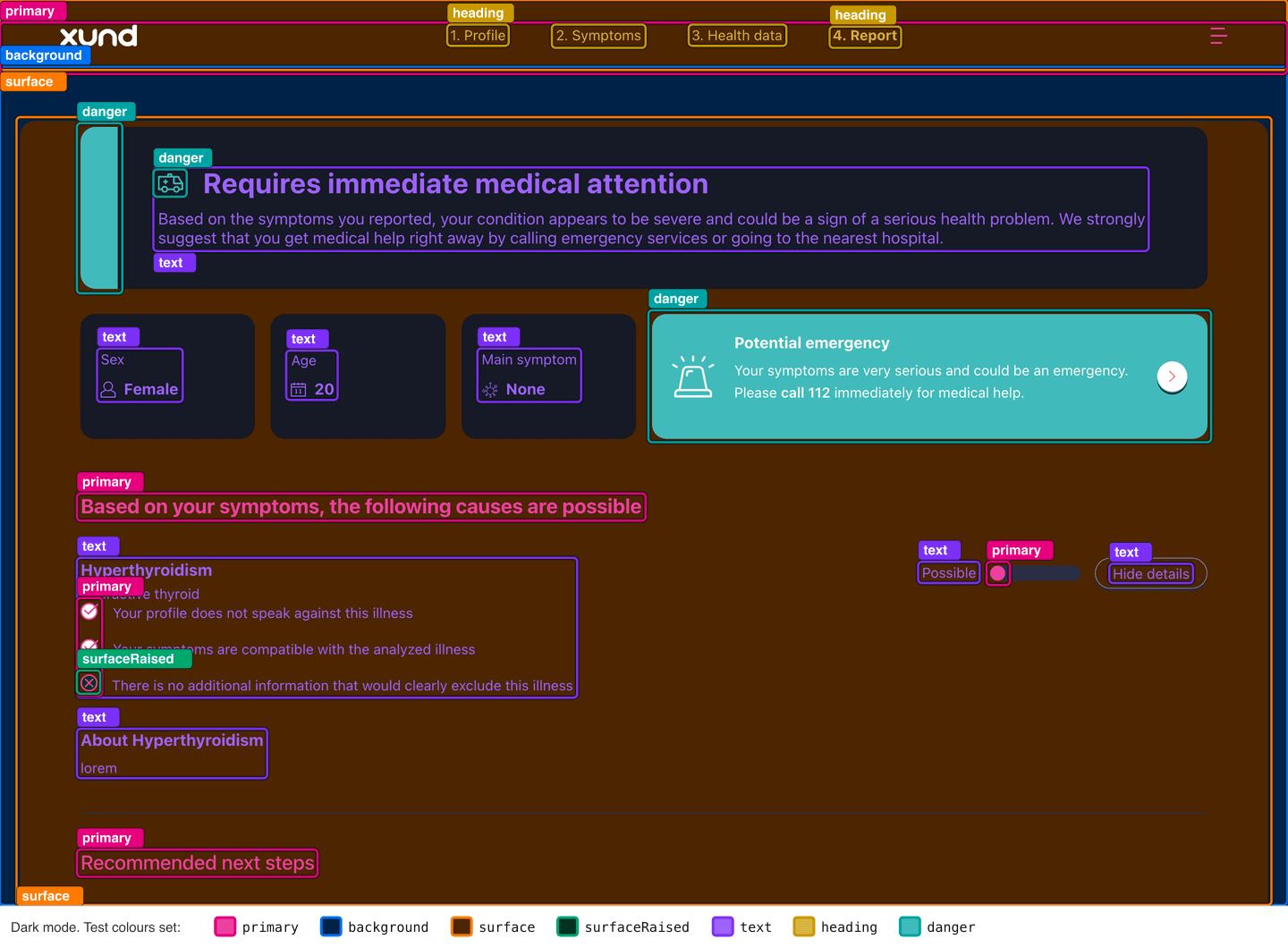
All core keys in light and dark mode
In these pictures, all core keys have a test colour at the same time. The first picture shows light mode. The second picture shows dark mode.
Keys follow other keys
When you set a key, the keys that follow it change too, unless you set them yourself. For example, in light mode these keys follow primary: primarySubtle, link, linkHover, highlight, controlBorderFocus, focusRing, icon, headerIcon, sideMenuBackground, progressFill, buttonConfirmBackground, buttonSecondaryBorder and buttonSecondaryText.
The When not set column of the Colour keys reference shows what each key follows. The light and the dark scheme can have different rules. For example, link follows primary in light mode, but it has its own value in dark mode.
focusRing is calculated. It is primary when primary has a contrast of at least 3:1 against surface. Otherwise it is text. Thus the keyboard focus outline stays visible when your brand colour is very light. In the side menu, the focus outline uses sideMenuText, not focusRing.
Accepted values
Each value is a CSS colour in one of these formats:
| Format | Examples |
|---|---|
| Hex with 3, 4, 6 or 8 digits | #0a7, #0a7c, #00aa77, #00aa77cc |
rgb() and rgba() | rgb(0, 170, 119), rgba(0, 170, 119, 0.5), rgb(0 170 119 / 50%) |
hsl() and hsla() | hsl(162, 100%, 33%), hsla(162, 100%, 33%, 0.5), hsl(162deg 100% 33%) |
| Keywords | transparent, white, black |
- Hex digits can be upper case or lower case.
- In
rgb(), a channel is a number from 0 to 255 or a percentage. The opacity is a number from 0 to 1 or a percentage. - In
hsl(), the hue is a number with or withoutdeg. Saturation and lightness must be percentages. - Other colour names, for example
red, are not accepted. - A value can have a maximum of 64 characters. The app removes spaces at the start and at the end.
Console messages
An invalid entry does not stop the app. The app ignores the entry and the key keeps its default. The app writes a message to the browser console of your page:
| Input | Level | Message |
|---|---|---|
| An unknown key | warning | [XUND web app] Unknown colour "brandColor" in colors.light, it is ignored. Valid colours: primary, onPrimary, … |
| An invalid value | error | [XUND web app] Invalid colour for colors.light.primary: "#12" |
| An unknown colour set | warning | [XUND web app] Unknown colour set "darkMode" in colors. Use 'light' or 'dark'. |
colors is not an object | error | [XUND web app] colors must be an object with a light and/or a dark colour set. |
colors.light or colors.dark is not an object | error | [XUND web app] colors.light must be an object of colour names to CSS colours. |
| An invalid colour scheme | error | [XUND web app] Invalid colorScheme "night". Use 'light', 'dark' or 'auto'. |
The warning for an unknown key lists all 56 valid keys. A value that is not a string shows without quotes in the message.
Where the colours come from
The app combines three layers, key by key. A later layer wins over an earlier layer:
- The XUND defaults. The built-in light and dark colours.
- The colours that XUND set up for your app. Light mode only. Ask XUND which colours were set up for your app.
- Your colours from the JS API.
customization.colors.lightandcustomization.colors.dark.
In dark mode, the app does not use layer 2. It starts from the XUND dark colours and then applies colors.dark.
Set the related keys too if XUND set up colours for your app. Each set-up colour is a fixed value for its key. It does not follow your
primaryfrom the JS API. For example, if XUND set up a colour forbuttonConfirmBackground, the Confirm button keeps this colour when you setprimary. To change the button, also setbuttonConfirmBackgroundincolors.light.
Dark mode
Dark mode uses the XUND dark colours. Dark mode is off when you do not set a colour scheme.
Turn it on
| Value | Result |
|---|---|
light | The light colours. This is the default. |
dark | The dark colours. |
auto | The app follows the colour setting of the device. When the user changes this setting, the app changes immediately. |
- JS API: set
customization.colorScheme. - Script embed: set the
color-schemeattribute. - JS API: call
xundApp.setColorScheme('light' | 'dark' | 'auto')while the app runs, for example from the theme switch of your page. You can call it immediately afterinit. It also works when you did not setcolorScheme.
If the value is not light, dark or auto, the app writes an error to the console. With setColorScheme(), the app then keeps the current colour scheme.
Adjust the dark colours
Set your dark colours in colors.dark:
const xundApp = await XUND.scic.init({
  …,
  customization: {
    colorScheme: 'auto',
    colors: {
      dark: { primary: '#4fd1c5', onPrimary: '#06201d', logoBackdrop: '#ffffff' },
    },
  },
})- Set your brand colour for dark mode. The app does not calculate dark colours from your light colours or from your set-up colours.
- Use a lighter brand colour for dark mode than for light mode. If your brand colour is light, use a dark
onPrimary. danger,warningandsuccesshave the same default fills in both schemes. Thus the urgency levels look the same.- The XUND logo changes to its white version in dark mode. The app shows your own logo as it is. If your logo has dark ink, give it a light background with
logoBackdrop. - Images that need a light background (the CE mark, the Thieme logo, partner-service images) show on
imageBackdrop. In dark mode, its default is a light colour. - The map in Health solutions uses a dark map style in dark mode.
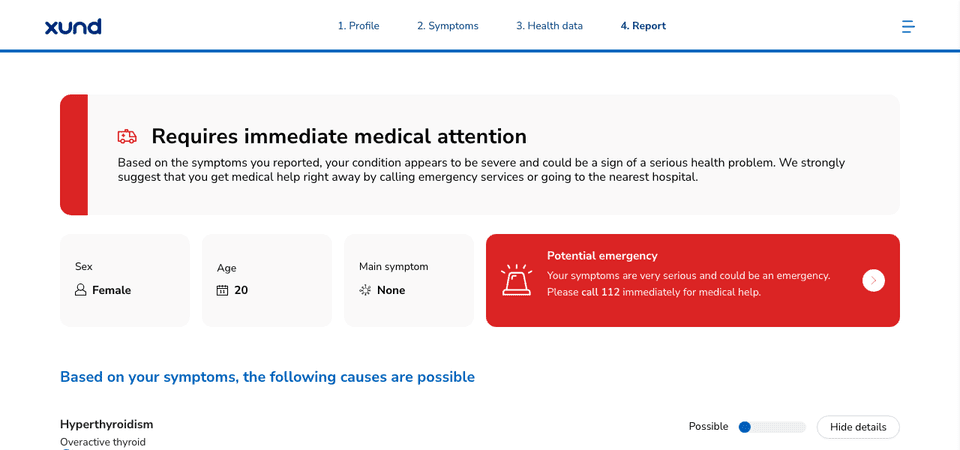
The XUND defaults in light and dark mode:
| Light | Dark |
|---|---|
 | 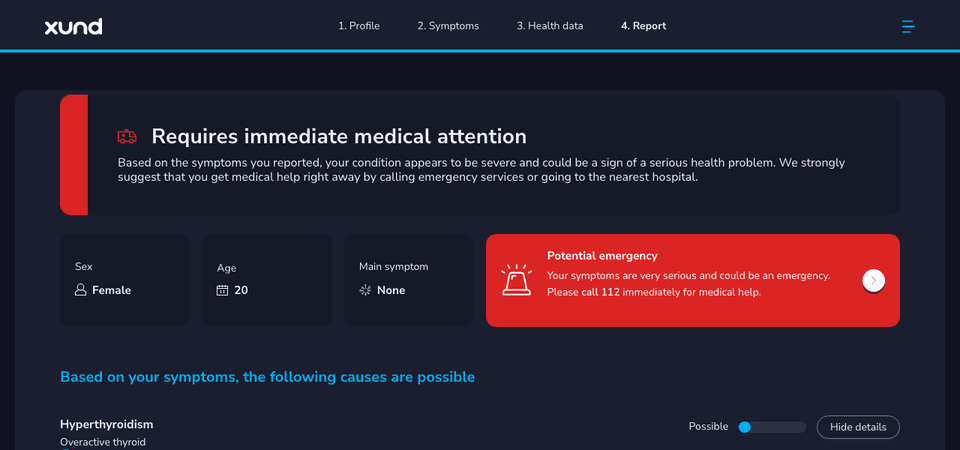 |
Examples
Each example below sets only a small number of keys. All other keys keep their default, or they follow the keys that are set. Copy the colors entry into customization. Then change the values to your brand colours.
All texts in these examples have a contrast of at least 4.5:1 (WCAG AA). The keyboard focus outline has a contrast of at least 3:1.
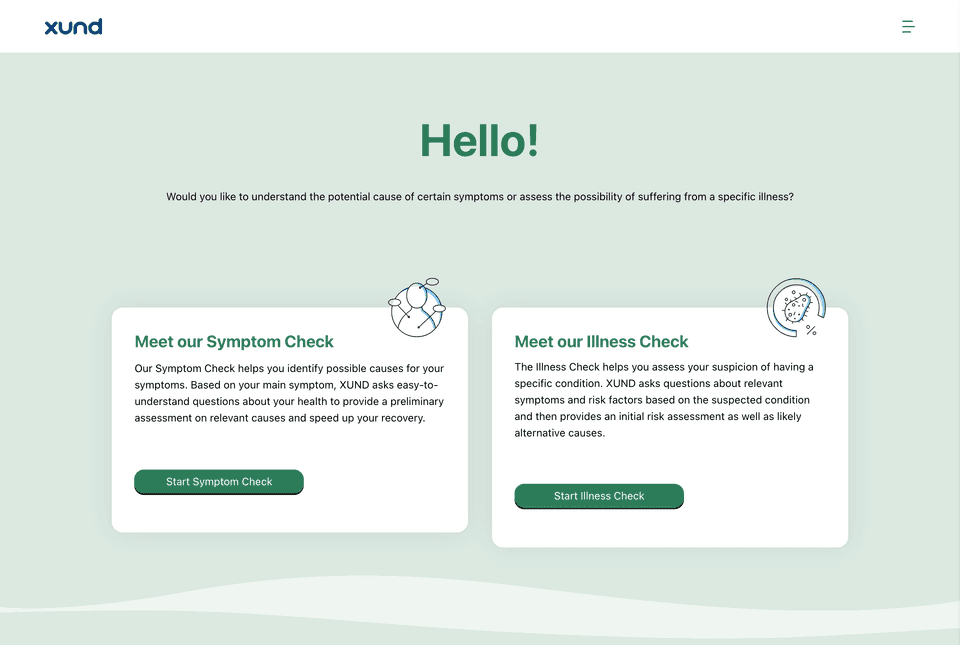
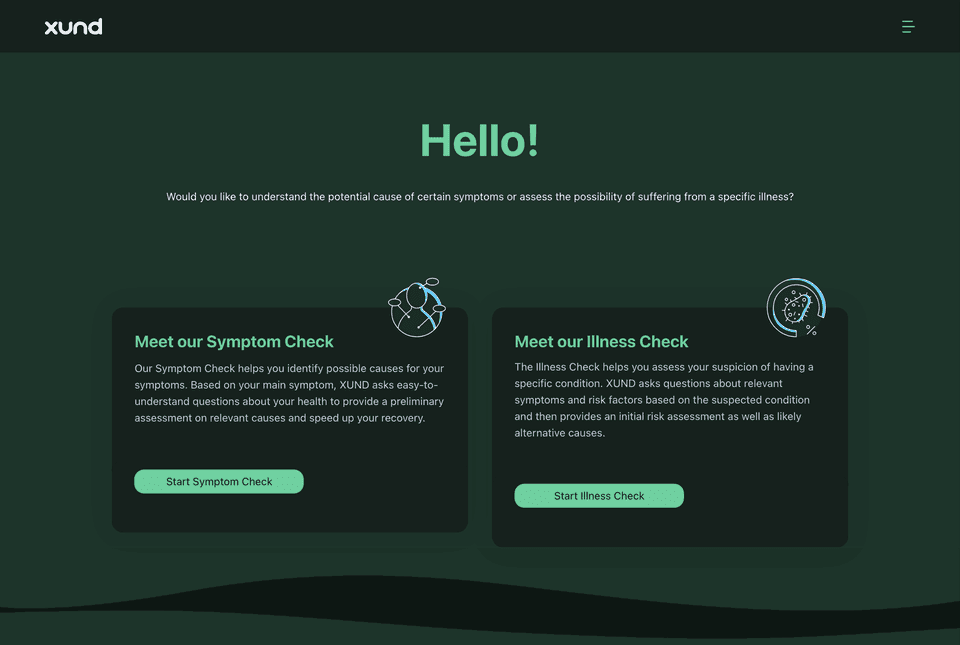
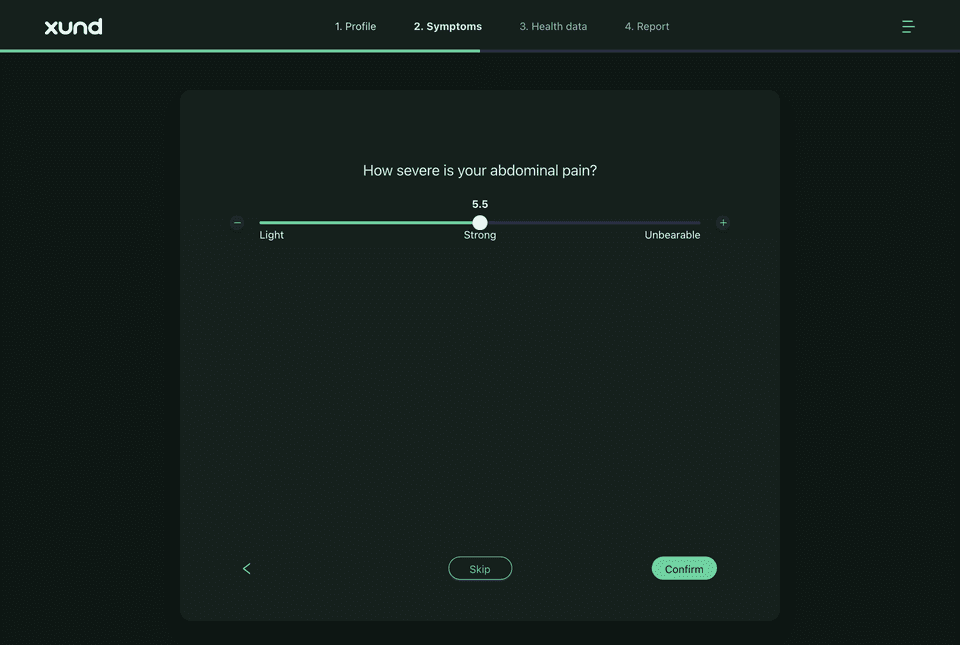
Calm green
A calm green brand colour on a light green page. In dark mode, the surfaces have a dark green tint.
| Light | Dark |
|---|---|
 |  |
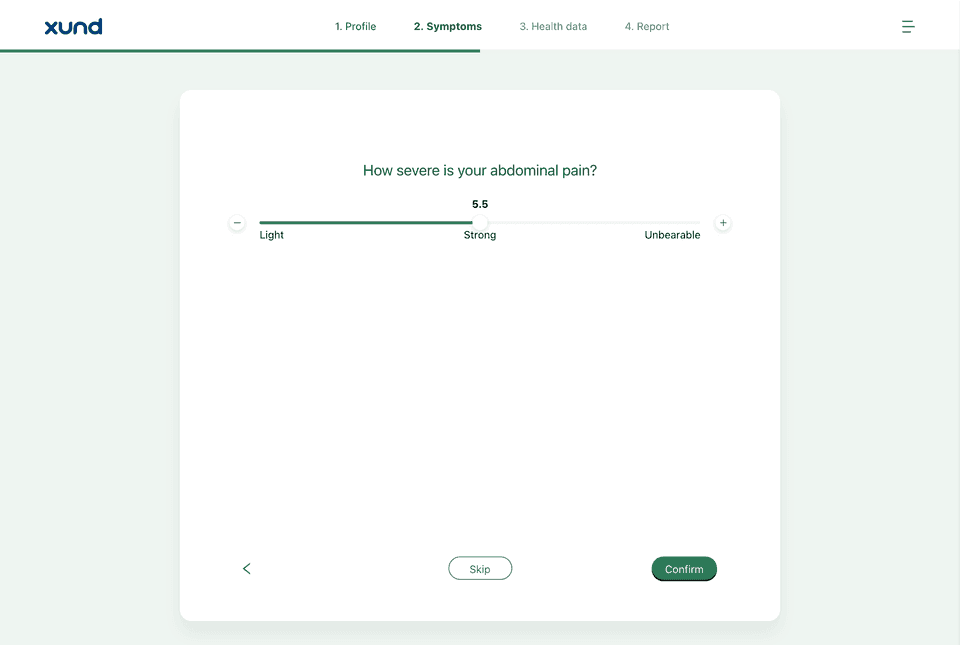 |  |
colors: {
  light: { primary: '#2f7d5b', heading: '#1f5a40', background: '#eef5f1' },
  dark: { primary: '#6fcf9f', onPrimary: '#0b1f15', heading: '#c9f0dc', background: '#0e1714', surface: '#16211d', surfaceRaised: '#1d2a25', border: '#2c3d36', surfaceSubtle: '#121c19' },
}
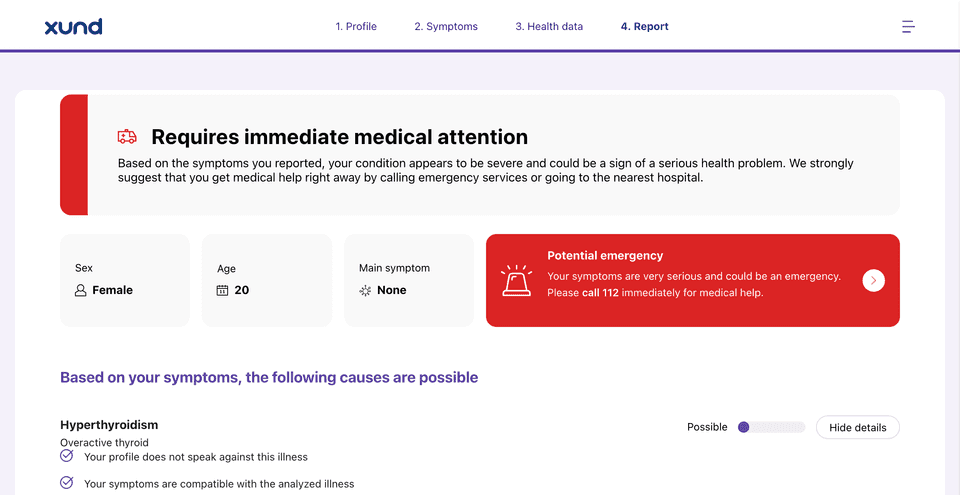
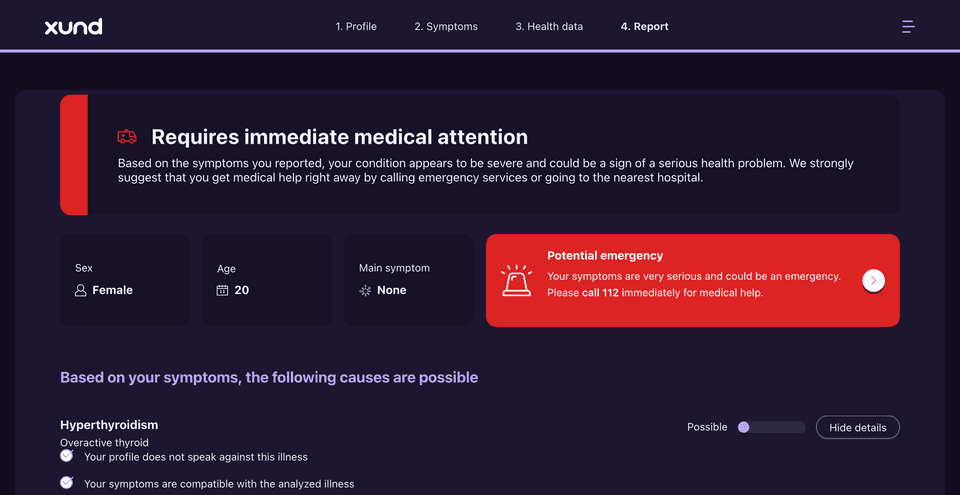
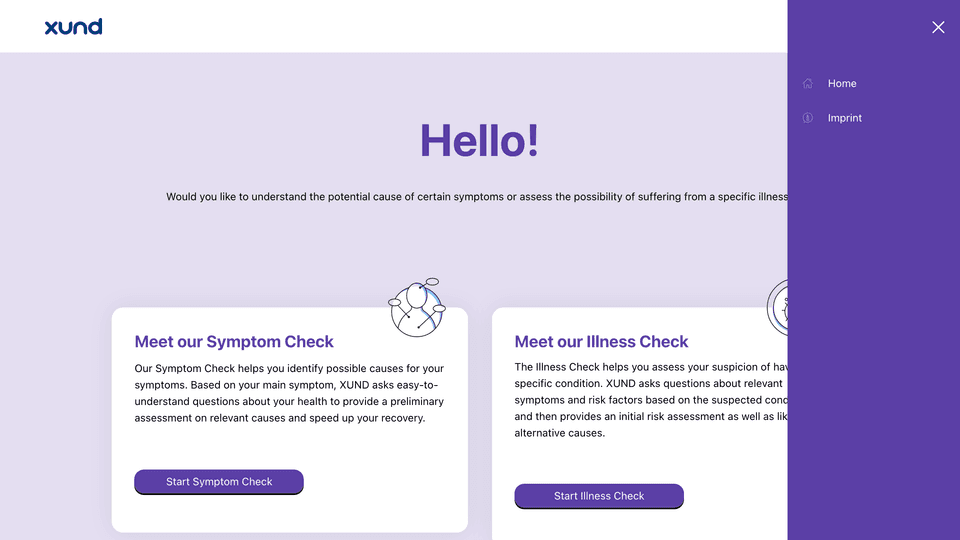
Deep purple
A deep purple brand colour on a light lavender page. In dark mode, the surfaces have a dark purple tint.
| Light | Dark |
|---|---|
 |  |
 | 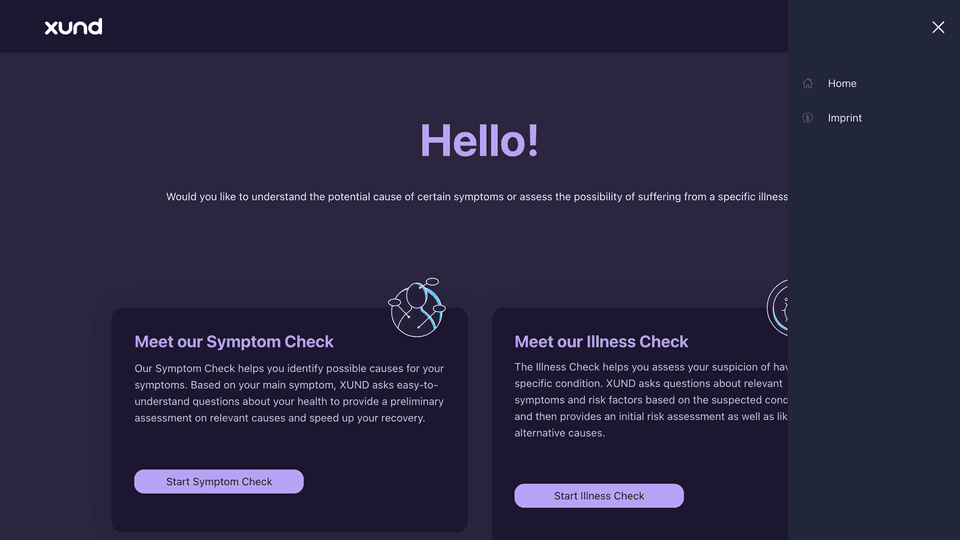 |
colors: {
  light: { primary: '#5b3fa6', heading: '#3d2a75', background: '#f4f1fa', border: '#ddd5ee' },
  dark: { primary: '#b7a3f5', onPrimary: '#1a1033', heading: '#e6ddff', background: '#120e1d', surface: '#1c1630', surfaceRaised: '#251d3d', border: '#3a3058', surfaceSubtle: '#171228' },
}
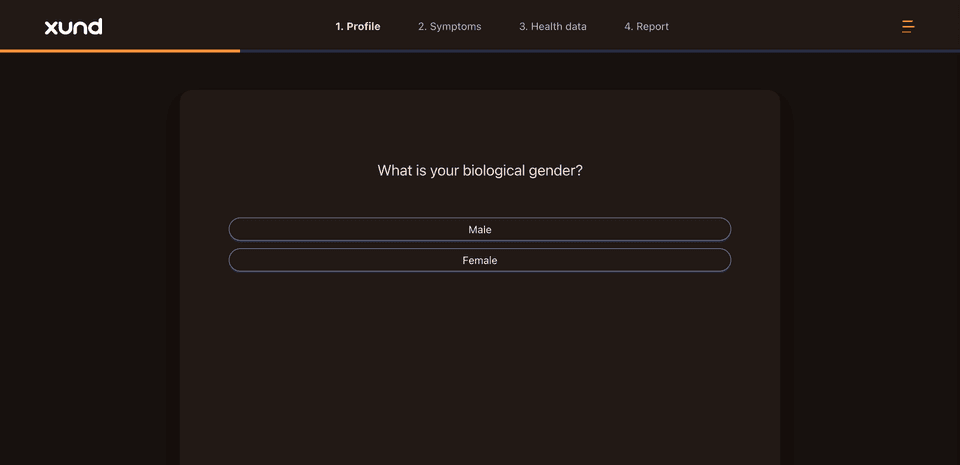
Warm coral
A warm orange brand colour on a light peach page. In dark mode, the surfaces have a dark brown tint.
| Light | Dark |
|---|---|
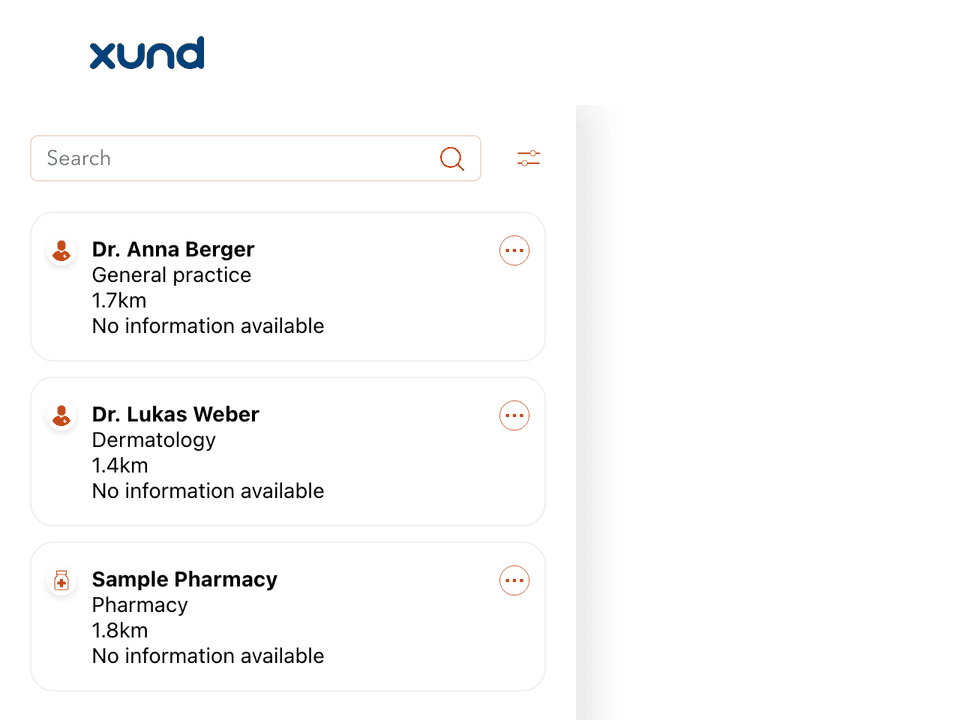 | 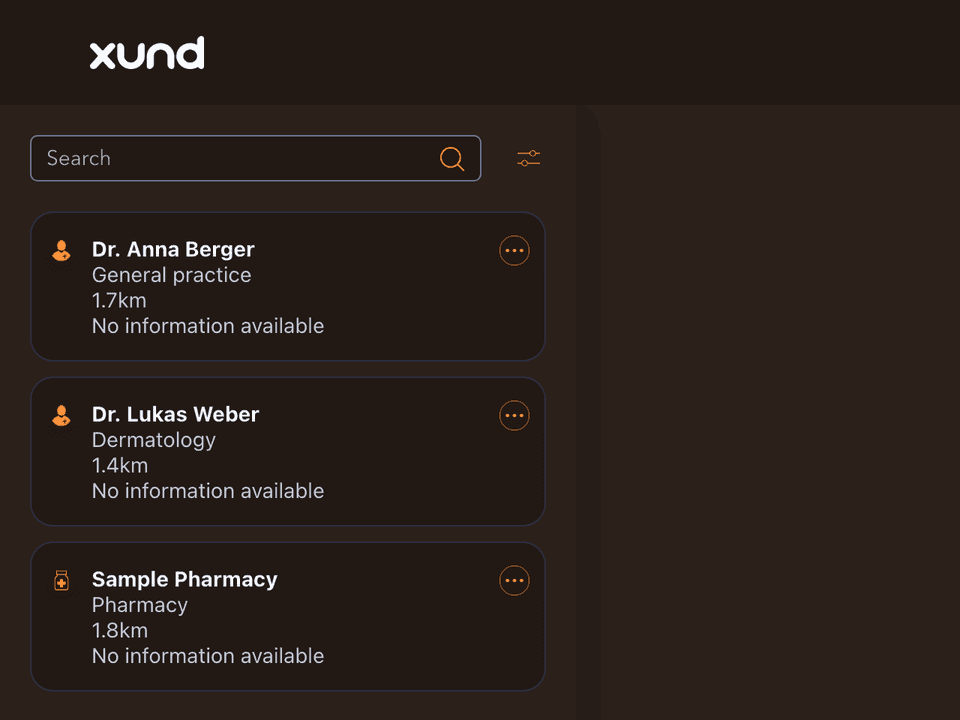 |
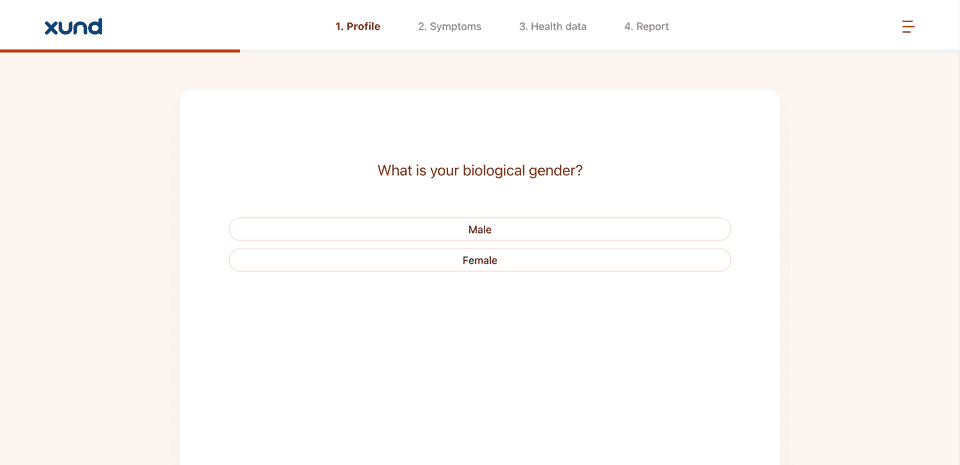 |  |
colors: {
  light: { primary: '#c2410c', heading: '#7c2d12', background: '#fdf5f0', border: '#f0dccf' },
  dark: { primary: '#fb923c', onPrimary: '#2a1205', heading: '#fde3d1', background: '#17110e', surface: '#221915', surfaceRaised: '#2b201b', border: '#433229', surfaceSubtle: '#1c1411' },
}
Good to know
- Check the contrast of each pair that you set, for example
onPrimaryonprimary,textandtextMutedonsurface, andonStatusondanger. For text, use a contrast of at least 4.5:1 (WCAG AA). - In light mode,
backgroundistransparentby default, so your page shows through behind the app. To get an opaque page, setbackground. - If XUND set up a background image for your app, the app shows the image. A set-up background colour sets
background.
For the complete list of keys, see Colour keys.
Last updated on